

How to Fix Touch ID That’s Not Working on MacBook Air or Pro
Touch ID is a powerful feature available on many modern MacBook Air and MacBook Pro models. It lets you unlock your device, authorise payments, sign in to apps, and make quick security changes all with just your fingerprint. But what happens when Touch ID is not working on your Mac?
This guide is written to help you fix the issue completely. Whether you’re dealing with a sensor that doesn’t respond, a fingerprint that’s no longer recognised, or settings that have stopped working, we’ll walk you through every solution step-by-step.
Why Touch ID Stops Working on Mac
Before jumping into solutions, it’s helpful to understand what might be causing the issue. Here are the most common reasons for Touch ID not working on Mac:
| Cause | Description |
| Dirty or wet sensor | Oil, dirt, or moisture can prevent fingerprint recognition |
| Software bugs | A recent macOS update may introduce glitches |
| Outdated OS | Older versions of macOS may lack support for newer Touch ID features |
| Corrupt fingerprint data | Fingerprint data can become unresponsive or mismatched |
| Hardware issues | Faulty sensors or damaged logic boards may cause failure |
| Incompatible external device | External Touch ID only works with Apple Silicon Macs |
Let’s move on to fixing these issues with clear and detailed instructions.
Fix Touch ID Not Working on MacBook Air or Pro
1. Clean the Touch ID Sensor
Sometimes the issue is as simple as a dirty sensor. Dirt, sweat, or moisture can interfere with fingerprint detection.
Steps:
- Shut down your Mac.
- Use a soft, lint-free cloth to wipe the Touch ID button.
- Avoid using liquids directly on the sensor.
- Dry your fingers before use.
Tip: Oils from your skin can accumulate over time, so regular cleaning is recommended.
2. Restart Your Mac
Minor system glitches often disappear after a reboot.
To restart:
- Click the Apple logo on the top-left
- Select Restart
- Try using Touch ID after the system reboots
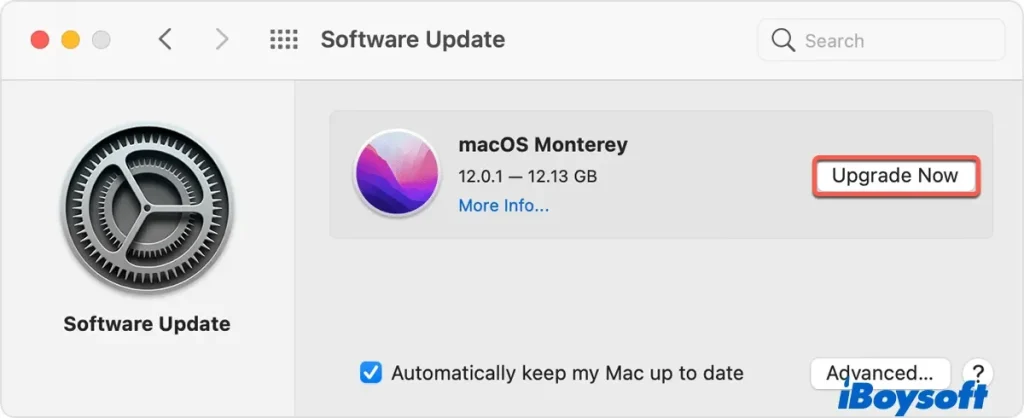
3. Update macOS
Outdated software can cause compatibility problems or bugs.
How to update:
- Go to System Settings > General > Software Update
- Download and install any available updates
- Restart your Mac afterwards
Keeping your OS up to date helps prevent many Touch ID issues caused by system bugs.
4. Check Touch ID Settings
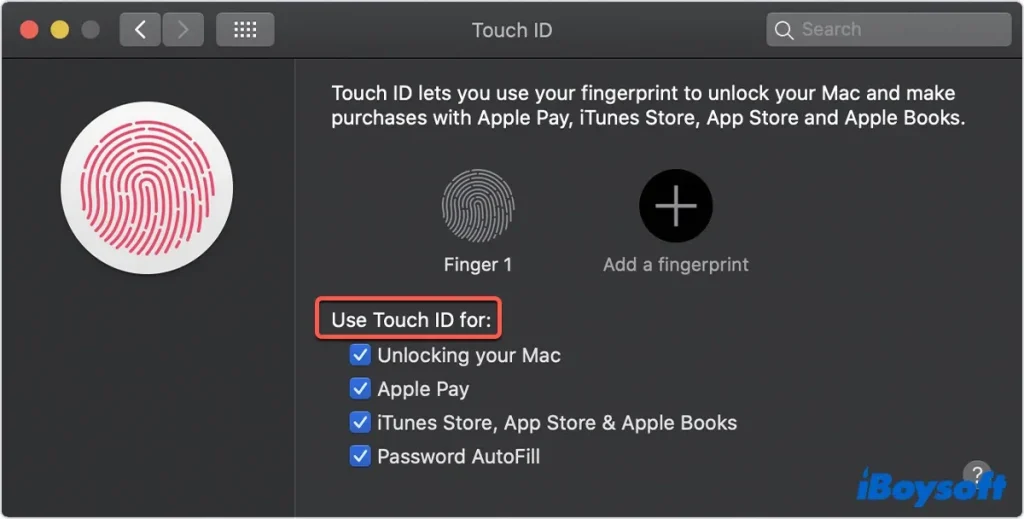
Sometimes, Touch ID may be disabled for certain features without your knowledge.
Check this by:
- Go to System Settings > Touch ID & Password
- Confirm the following options are enabled: Unlocking your Mac, Apple Pay, iTunes and App Store
- If any are off, toggle them back on
If the entire Touch ID section is missing or greyed out, jump to the hardware check section below.
5. Remove and Re-Add Your Fingerprint
Your saved fingerprint may be corrupted or outdated. Re-adding a new fingerprint can help restore functionality.
To re-add:
- Open System Settings > Touch ID & Password
- Click the (X) icon next to your fingerprint to delete it
- Click Add Fingerprint and follow the prompts
Many users asking how to add a fingerprint to a Mac can use this method to register a new print successfully.
6. Try Another Finger
The sensor might not recognise your fingerprint if your skin is too dry, injured, or changed due to wear. Try adding a different finger and test the function again.
To add more fingerprints:
- Go to Touch ID & Password > Add Fingerprint
- macOS allows up to 3 fingerprints on newer versions
7. Boot into Safe Mode
Safe Mode disables third-party extensions and startup items that could be interfering with Touch ID.
For Apple Silicon Macs:
- Turn off the Mac
- Press and hold the power button until options appear
- Select your startup disk
- Hold Shift and click Continue in Safe Mode
For Intel Macs:
- Restart and hold Shift immediately
- Release once the login screen appears
Try using Touch ID in Safe Mode. If it works, the issue may be caused by third-party apps or system extensions.
8. Reset SMC and NVRAM (Intel Macs Only)
Corrupted system settings can affect hardware like Touch ID. Resetting SMC and NVRAM can often resolve this.
Reset SMC:
- Shut down your Mac
- Press Shift + Control + Option + Power for 10 seconds
- Release all keys and power it back on
Reset NVRAM:
- Shut down your Mac
- Turn it on and immediately hold Option + Command + P + R
- Keep holding for 20 seconds, then release
Apple Silicon Macs don’t have these options — instead, just restart or boot into Safe Mode.
9. Check External Touch ID Compatibility
If you’re using an external Touch ID for Mac, like Apple’s Magic Keyboard with built-in Touch ID, be aware of these requirements:
- Only works on Apple Silicon Macs (M1, M2, etc.)
- Must be connected via Bluetooth
- Does not work on Intel Macs
- Must be running macOS 11.4 or later
If you’re using the wrong Mac or the software is outdated, Touch ID will not work.
10. Run Apple Diagnostics (Hardware Check)
To rule out hardware damage:
- Shut down your Mac
- Turn it on and hold the D key until diagnostics begin
- Follow on-screen instructions
If you get an error code related to Touch ID or sensors, the issue is likely hardware-based and needs professional repair.
When to Seek Professional Repair
If none of the above methods restore your Touch ID functionality, it’s time to speak with a qualified technician. Common hardware issues that require professional service include:
- Faulty Touch ID sensor
- Loose cable connections
- Damaged logic board
- Faulty keyboard (for external sensors)
Independent repair centres Same Day Mac Repairs specialise in diagnosing and fixing Mac hardware problems quickly and efficiently — often faster than official Apple Stores.
Best Practices for Long-Term Touch ID Performance
- Keep the sensor clean and dry
- Avoid registering fingers with cuts or peeling skin
- Add multiple fingerprints to avoid recognition errors
- Restart your Mac weekly to clear background processes
- Always install macOS updates
Conclusion
If Touch ID is not working on your MacBook Air or Pro, don’t panic. Most issues are software-based and can be fixed with simple steps like cleaning the sensor, updating macOS, or re-adding your fingerprint. For more complex problems, hardware checks or professional help may be necessary.
Whether you’re figuring out where the Touch ID is on MacBook Air, or troubleshooting external Touch ID for Mac, this guide gives you all the tools you need.
If Touch ID is still not working after these steps, contact a trusted Apple independent repair provider Same Day Mac Repairs to get a fast and reliable fix.