

10 Expert Tips to Maximise Your iPhone Battery Life
iPhone users rely on their devices for a variety of tasks, from professional communications to personal entertainment. With constant use, battery life becomes a critical concern. Understanding how to save battery on your iPhone is not only important for extending the device’s longevity but also for ensuring its reliability throughout the day. At Same Day Mac Repairs, we specialise in providing expert solutions for all your iPhone issues, including battery-related concerns. If you’re looking for ways to improve iPhone battery life, here are 10 professional tips to help you get the most out of your device.
1. Optimise Screen Brightness for Power Savings
The iPhone’s display is a major contributor to battery consumption. Adjusting the screen brightness is one of the easiest ways to conserve battery. You can either manually reduce the brightness through Settings > Display & Brightness or enable Auto-Brightness, which automatically adjusts brightness based on ambient light conditions. These minor adjustments can significantly improve your battery life.

2. Activate Low Power Mode for Extended Use
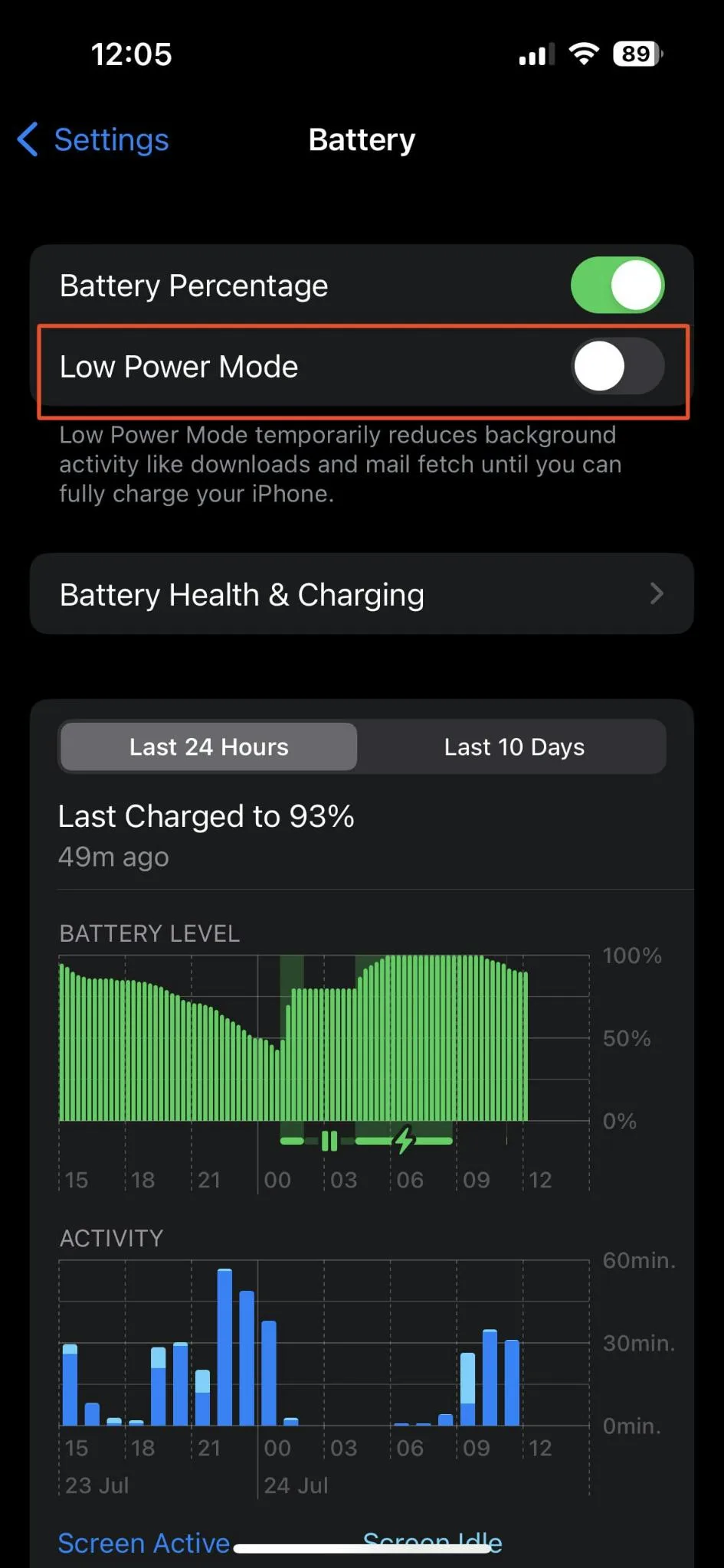
Low Power Mode is a built-in feature designed to reduce power consumption by limiting non-essential background processes. This feature lowers screen brightness, disables automatic downloads, and reduces background activity to help extend battery life when your phone is low on power. To activate Low Power Mode, simply go to Settings > Battery and toggle it on. This feature is especially useful in emergency situations when you need your phone to last a few extra hours.
3. Disable Background App Refresh to Conserve Battery
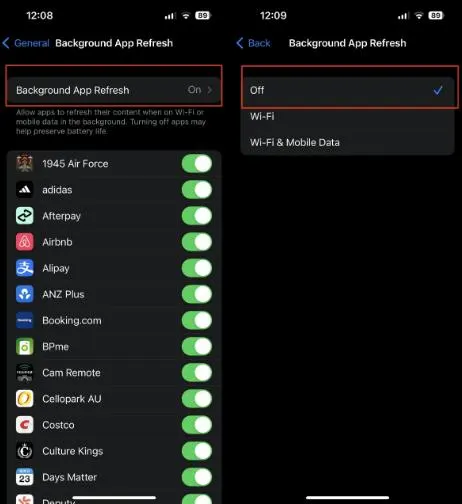
Apps that update their content in the background can silently drain your battery. By turning off Background App Refresh, you can significantly improve iPhone battery life. Navigate to Settings > General > Background App Refresh, and select either Off or Wi-Fi to limit apps from consuming energy unless you are connected to a network. This simple adjustment can help extend your device’s battery lifespan.
4. Limit Location Services for Battery Preservation
Many apps use Location Services to track your position, consuming battery power in the process. To reduce battery usage, disable location tracking for apps that do not require it. Go to Settings > Privacy > Location Services, and adjust permissions for each app based on your needs. For instance, you can opt for “While Using the App” instead of allowing apps to use your location all the time.

5. Manage Push Notifications to Prevent Power Drain
Push notifications, while useful, frequently wake your device and trigger background processes, leading to faster battery drain. To save battery on iPhone, go to Settings > Notifications, and turn off unnecessary notifications for apps that don’t require immediate attention. This small step can reduce the frequency of interruptions, saving both power and time.

6. Disable Automatic App Downloads and Updates
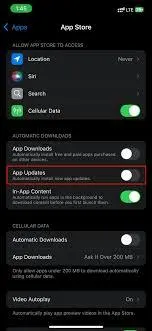
Automatic downloads and updates can run in the background, contributing to battery drain. To conserve energy and improve iPhone battery life, disable automatic updates and app downloads. You can manage this by navigating to Settings > App Store and toggling off Automatic Downloads. This will allow you to manually update apps when you’re ready, ensuring your battery isn’t consumed by unwanted background activities.
7. Reduce Motion and Visual Effects
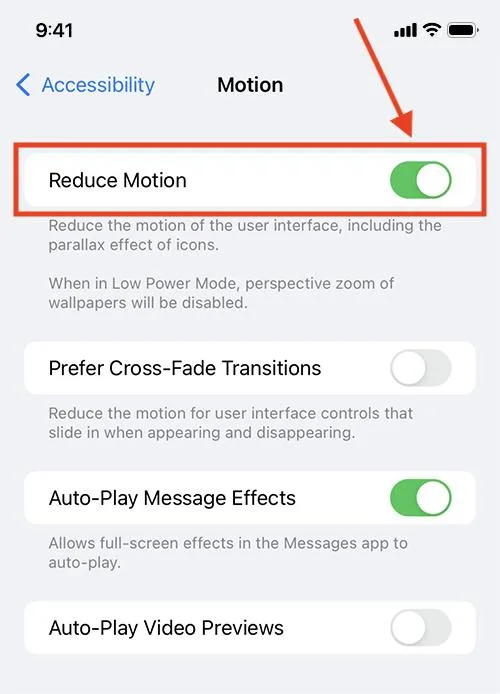
Apple includes various visual effects and animations that enhance the user experience, but they also put a strain on the battery. If you’re looking to improve battery life on iPhone, consider reducing the motion and animations. Simply go to Settings > Accessibility > Motion, and enable Reduce Motion. This will make your iPhone more battery-efficient while maintaining its core functionality.
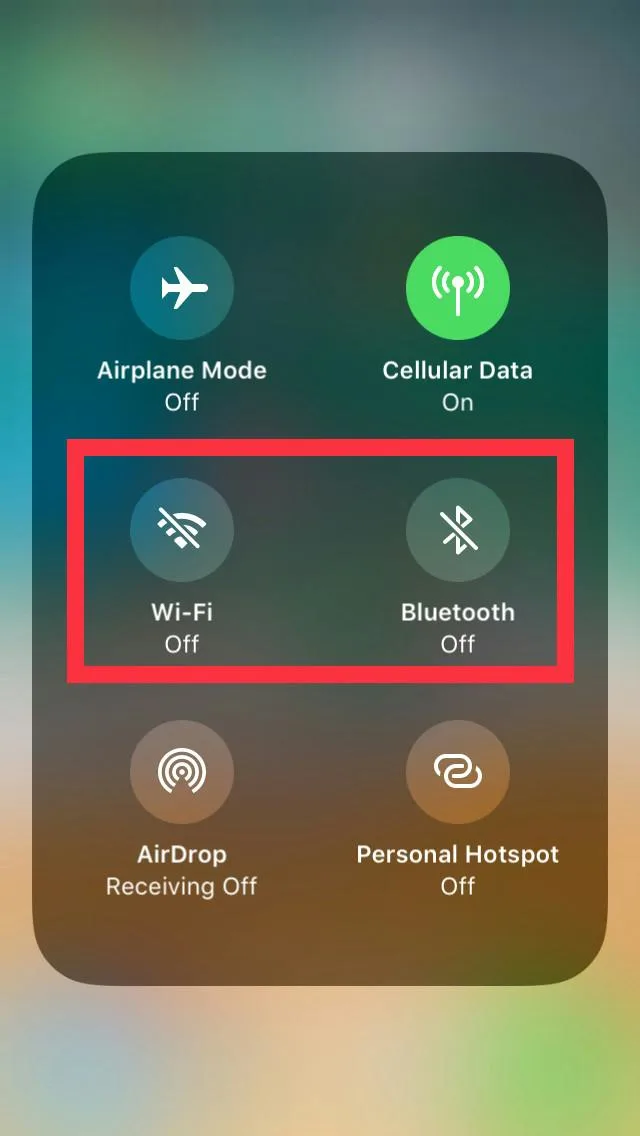
8. Turn Off Wi-Fi and Bluetooth When Not in Use
Wi-Fi and Bluetooth continuously search for networks and devices, which can drain battery life. To optimise battery performance, turn off Wi-Fi and Bluetooth when you’re not actively using them. Access the Control Centre by swiping down from the top-right of your screen and toggling both options off. This small change can have a noticeable effect on your overall battery life.
9. Enable Optimised Battery Charging to Maintain Battery Health
Apple’s Optimised Battery Charging feature helps preserve the long-term health of your iPhone’s battery by reducing the wear on it. This feature slows down the charging process when plugged in for extended periods, especially when it detects that you typically charge your iPhone overnight. To enable this feature, go to Settings > Battery > Battery Health and turn on Optimised Battery Charging. This will help maintain the health of your battery over time.

10. Regularly Update Your iPhone to Improve Battery Efficiency
Apple continuously releases updates that include important performance improvements and bug fixes, which can include enhancements to battery life. To keep your iPhone in optimal condition, check for software updates regularly by going to Settings > General > Software Update. Installing the latest updates ensures that your device benefits from the most efficient battery performance.

Conclusion
Maximising your iPhone’s battery life doesn’t require drastic changes—it’s about making small adjustments to optimise power usage. By following these 10 expert tips, you can save battery on your iPhone and ensure that it remains functional throughout your busy day. Whether you’re looking for ways to improve battery life on your iPhone 14 or seeking long-term strategies to preserve battery health, these techniques will help you get the most out of your device.
If you’re experiencing rapid battery drain or notice your iPhone’s performance degrading despite following these tips, it may be time for a professional battery check. At Same Day Mac Repairs, we specialise in diagnosing and repairing battery-related issues to restore your device’s full functionality. Contact us today for fast, reliable service and get your iPhone back to optimal performance.